Save the following as a .REG file, then import it.
Windows Registry Editor Version 5.00

[HKEY_CLASSES_ROOT\exefile\shell\Extract MSP File]

[HKEY_CLASSES_ROOT\exefile\shell\Extract MSP File\command]
@="%1 /e %1.msp"
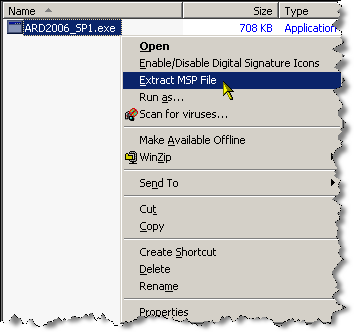
Now when you right click on an .exe file, you will have to option to "Extract MSP File" as shown below.
Labels: Tips
PermaLink Posted 1/18/2006 07:59:00 AM Comments (5)
13 January 2006
Need to find a drawing or drawing component?
Ellen Finkelstein has a great tip on www.ellenfinkelstein.com regarding how to find in which drawings a specific file is used as an xref.
Taking this one step further, you can search a whole directory, drive, or even a network for drawings containing certain named objects such as layers, blocks, layouts, and dimstyles.
Let's say you need to find a certain drawing, but you do not remember it's name or exact location. You do however know the name of a layout it contains. You can find this drawing easily.
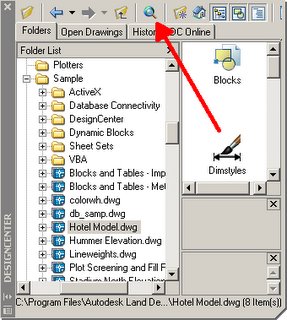
Start by opening DesignCenter (ADC at the command line or Ctrl+2 shortcut). Click the search button on top.
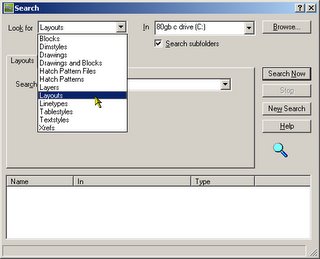
In the search dialog, select Layout in the "Look for" drop down list. Select the location in which to search. Enter the name of the layout, then click Search Now
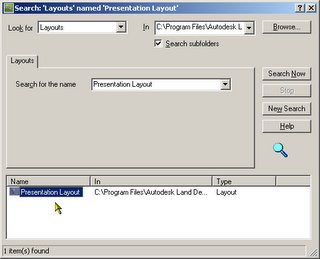
Depending on the number of drawings being searched, it may take anywhere from a few seconds to a few minutes. When the results are found, you can adjust the columns to view the full path. Double clicking on the name of the layout will load that drawing in DesignCenter.
Note that the available options in the search dialog depend on what you are searching for. Explore the search feature in DesignCenter, you may discover other time saving tricks.
PermaLink Posted 1/13/2006 08:03:00 AM Comments (0)
Taking this one step further, you can search a whole directory, drive, or even a network for drawings containing certain named objects such as layers, blocks, layouts, and dimstyles.
Let's say you need to find a certain drawing, but you do not remember it's name or exact location. You do however know the name of a layout it contains. You can find this drawing easily.
Start by opening DesignCenter (ADC at the command line or Ctrl+2 shortcut). Click the search button on top.
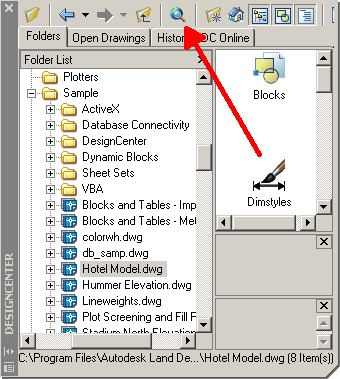
In the search dialog, select Layout in the "Look for" drop down list. Select the location in which to search. Enter the name of the layout, then click Search Now
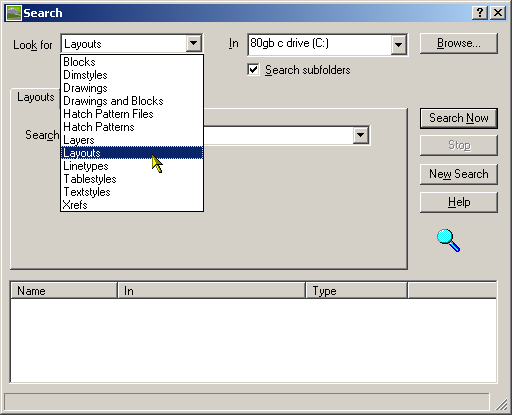
Depending on the number of drawings being searched, it may take anywhere from a few seconds to a few minutes. When the results are found, you can adjust the columns to view the full path. Double clicking on the name of the layout will load that drawing in DesignCenter.

Note that the available options in the search dialog depend on what you are searching for. Explore the search feature in DesignCenter, you may discover other time saving tricks.
Labels: Tips
PermaLink Posted 1/13/2006 08:03:00 AM Comments (0)
03 January 2006
More AutoCAD tips
AutoCAD tips and tricks. Everyone has their favorite site. Don't forget about the Autodesk website itself. Start by finding your product at http://www.autodesk.com/products. Then click on the Training link in the left column. Then click on the Tips link. If you have a tip of your own, use the Submit a tip link.
Here are a few direct links.
...and a few specific tips.
PermaLink Posted 1/03/2006 09:33:00 PM Comments (0)
Here are a few direct links.
...and a few specific tips.
- Using trigonometic calculations in table formulas
- Share your custom scales
- Rounding errors in QuickCalc
- Create Polylines with Cleanup Tool
Labels: Tips
PermaLink Posted 1/03/2006 09:33:00 PM Comments (0)