One way to do this would be to insert the raster images into AutoCAD, then use publish to create a multi-page DWF file. This would be OK if you only had 2 or 3 raster images. In the following example though, I have 21 TIFF files. This would take a while using the above method.
First, you will need to install the DWF Writer application from Autodesk. This acts as a print driver, allowing you to create a DWF file from any application that can print.
Next, find your raster images in Windows Explorer.
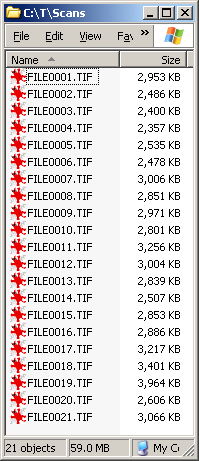
In this example, these raster images are named so that they are in the proper order. Select them by clicking the last image, then holding the shift key, and click the first image. This will ensure that the sheets in the multi-page DWF are in the correct order. If your raster files are in a different order, you may have to experiment with the selection process.

After your selection is made, right click and choose Print. The Windows XP Photo Printing Wizard should start.
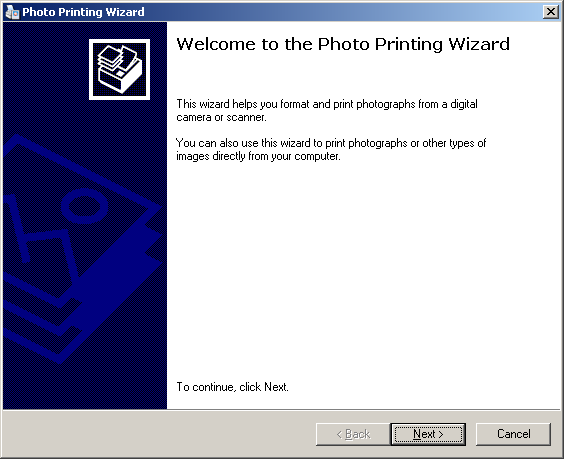
Click Next. In the next dialog, click the Select All button.
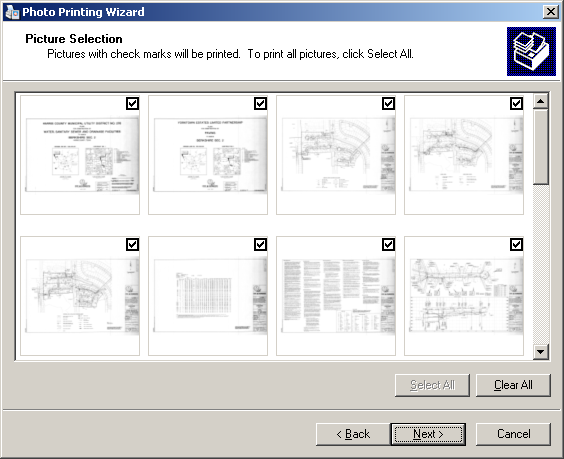
Click Next. In the next dialog, choose the Autodesk DWF Writer as the printer.
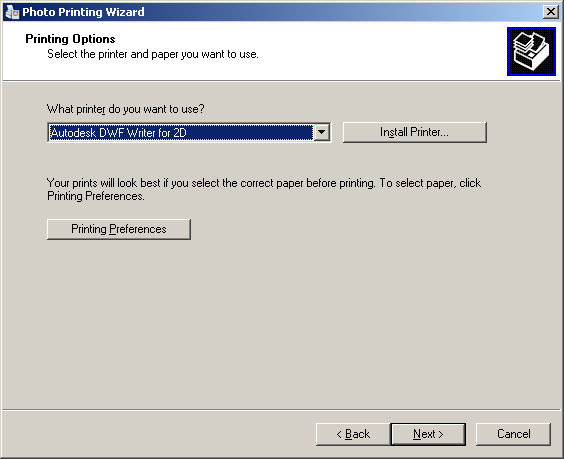
Click the Printing Preferences button to view and/or change the DWF output defaults. In this example, we will use 300 dpi, set the paper size to 11x17, and use monochrome output. On the Output Location tab, choose the location to save the DWF file.
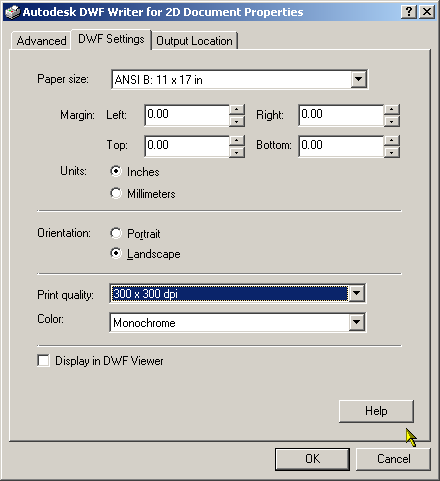
After you click OK to close the Printing Preferences, click Next. In the next dialog, choose Full Page Fax Print from the options on the left.
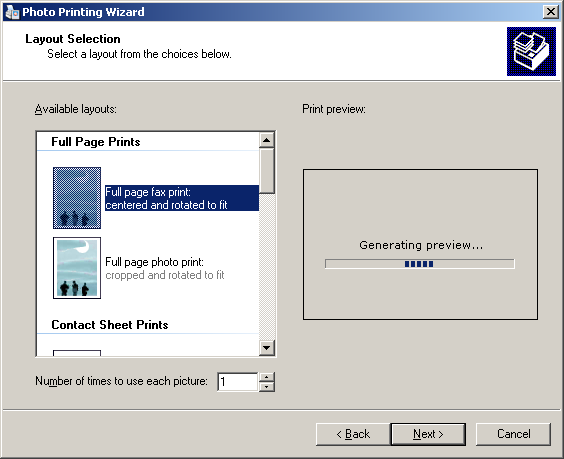
Click Next. Depending on your choices in the Printing Preferences, you may or may not be prompted for a file name. The multi-page DWF file will be created in the location specified.
In this example, the original 21 TIFF files totaled 59mb. The DWF we created came in at 12mb. Bumping the dpi down to 200 results in a 5mb DWF file. Bumping the dpi up to 400 results in a 37mb DWF file.
Using this example, I printed the same sheet from the 200 dpi DWF and the 300 dpi DWF. There is very little difference in the print quality. You may have to experiment to find out what works for your situtaion.
Labels: Tips
PermaLink Posted 12/29/2005 01:13:00 PM Comments (0)
28 December 2005
Raster Design Options
If you are using Raster Design (ARD), take a few minutes and explore the ARD Options dialog (command name IOPTIONS).
We frequently edit raster images using Raster Design (ARD) by merging vector linework back into the raster image. In almost every case, we wish to discard the vector entities after performing the merge.
One of the options you can control is whether ARD prompts you each time to discard the vector entities. Look on the Vector Merge tab of the IOPTIONS dialog.
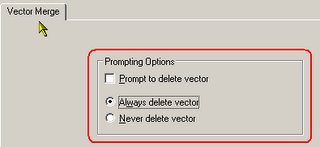
There are many other options in the IOPTIONS dialog that are worth exploring if you have not already.
PermaLink Posted 12/28/2005 12:12:00 PM Comments (0)
We frequently edit raster images using Raster Design (ARD) by merging vector linework back into the raster image. In almost every case, we wish to discard the vector entities after performing the merge.
One of the options you can control is whether ARD prompts you each time to discard the vector entities. Look on the Vector Merge tab of the IOPTIONS dialog.
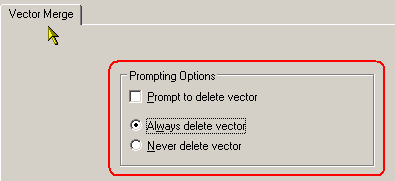
There are many other options in the IOPTIONS dialog that are worth exploring if you have not already.
Labels: Raster Design
PermaLink Posted 12/28/2005 12:12:00 PM Comments (0)
12 December 2005
PLT File Viewers
This page has been updated, so to push it to the top I created a new "entry", please click on the link here: http://rkmcswain.blogspot.com/2006/03/update-plt-file-viewers.html
PermaLink Posted 12/12/2005 08:23:00 AM Comments (0)
Labels: Viewers
PermaLink Posted 12/12/2005 08:23:00 AM Comments (0)
06 December 2005
Autodesk survey
(No, not the software application, I mean survey, as in poll...)
As mentioned over at Hyperpics: Beyond the UI, Autodesk is conducting a survey on industry related blogs. Check it out if you have a couple of minutes.
PermaLink Posted 12/06/2005 08:36:00 PM Comments (0)
As mentioned over at Hyperpics: Beyond the UI, Autodesk is conducting a survey on industry related blogs. Check it out if you have a couple of minutes.
PermaLink Posted 12/06/2005 08:36:00 PM Comments (0)
02 December 2005
Wheel scroll in VBA editor
If you are working in the VBA editor and are frustrated because the scroll button on your mouse does not scroll, then pick up this freebie called FreeWheel and drop it in your Windows Start Menu in the startup group.
I have seen some people fix the scrolling problem by using a certain driver (an older version) or by making registry hacks, but FreeWheel is too simple to worry about messing with any other method. No nag screens or any indication it's even running except an icon in the system tray.
A quick check of my Task Manager reveals it only uses about 2400k of memory, one of the lowest in the list.
UPDATE 2006-09-08 - Thanks to Calvin Taylor for alerting me to a Microsoft KB article regarding this topic. Microsoft has their own add-in for the VBA Editor that you may be able to use. I have not tried it though. See: http://support.microsoft.com/?id=837910
PermaLink Posted 12/02/2005 08:00:00 AM Comments (6)
I have seen some people fix the scrolling problem by using a certain driver (an older version) or by making registry hacks, but FreeWheel is too simple to worry about messing with any other method. No nag screens or any indication it's even running except an icon in the system tray.
A quick check of my Task Manager reveals it only uses about 2400k of memory, one of the lowest in the list.
UPDATE 2006-09-08 - Thanks to Calvin Taylor for alerting me to a Microsoft KB article regarding this topic. Microsoft has their own add-in for the VBA Editor that you may be able to use. I have not tried it though. See: http://support.microsoft.com/?id=837910
Labels: Programming
PermaLink Posted 12/02/2005 08:00:00 AM Comments (6)